IronPen Help Guide
Complete guide to IronPen — your strength training journal.
Introduction
IronPen is a training journal designed for strength athletes. It lets you plan workouts, log sets in the gym, track personal records, and share workouts with friends.
The app includes 163 exercises with detailed descriptions, 20 built-in training programs with automatic progression, and is available in 8 languages (English, Czech, German, French, Spanish, Italian, Polish, Portuguese).
Key Features
- 20 proven training templates with automatic progression (Wendler, StrongLifts, nSuns, GZCLP, PPL and more)
- Automatic progression — the app increases weights, handles deloads and tier-downs for you
- 163 exercises with bilingual descriptions, tips and YouTube search
- Log sets, weights, reps, and RPE directly in the gym
- Automatic personal record tracking
- Advanced statistics — volume per muscle group, distribution, trends, 1RM progression
- Future workout statistics — see if your plan is balanced
- EMOM mode for interval training
- Share workouts with friends and in groups
- Instagram story card after completing a workout
- Daily notes (journal) — write anything about your day
- Plate calculator and 1RM estimator
- Body measurement tracking
- Demo mode to try without registration
- Full offline mode
- Edit completed workouts — retroactively adjust weights and reps
- Weight stepper — step-by-step weight input (+/− buttons)
- In-app feedback — report bugs and suggestions directly
Offline Mode
IronPen works fully offline without registration or internet connection. All data (workouts, exercises, settings) is stored locally on your phone.
In offline mode, everything works except social features — friends, workout sharing, and groups require registration and an internet connection.
Registration & Login
To access community features, you need to register. You have two options:
Email & Password
Enter your email, choose a password, and pick a nickname. Your nickname helps other users find you. After registration, you need to verify your email address — check your inbox for the verification link.
Google Account
The faster option — tap "Sign in with Google" and select your Google account. Email is verified automatically.
Signing Back In
If you've signed out, you can sign back in using your email or nickname and password, or via Google account.
Demo Mode
Want to try the app without registering? On the login screen, tap "Try with demo data".
The app loads a John Doe profile with 12 weeks of training history (Wendler 5/3/1 program), 4 weeks of planned workouts, and body measurements. You'll see how statistics, charts, history, and other features look with real data.
What you can do in demo mode
- Browse dashboard, history, statistics
- Start and complete a planned workout — log sets, RPE, notes, timer
- View the share card after completing a workout
- Browse body measurements and correlations with statistics
Exit demo mode with the "End demo" button in the top banner. All demo data will be deleted.
Dashboard
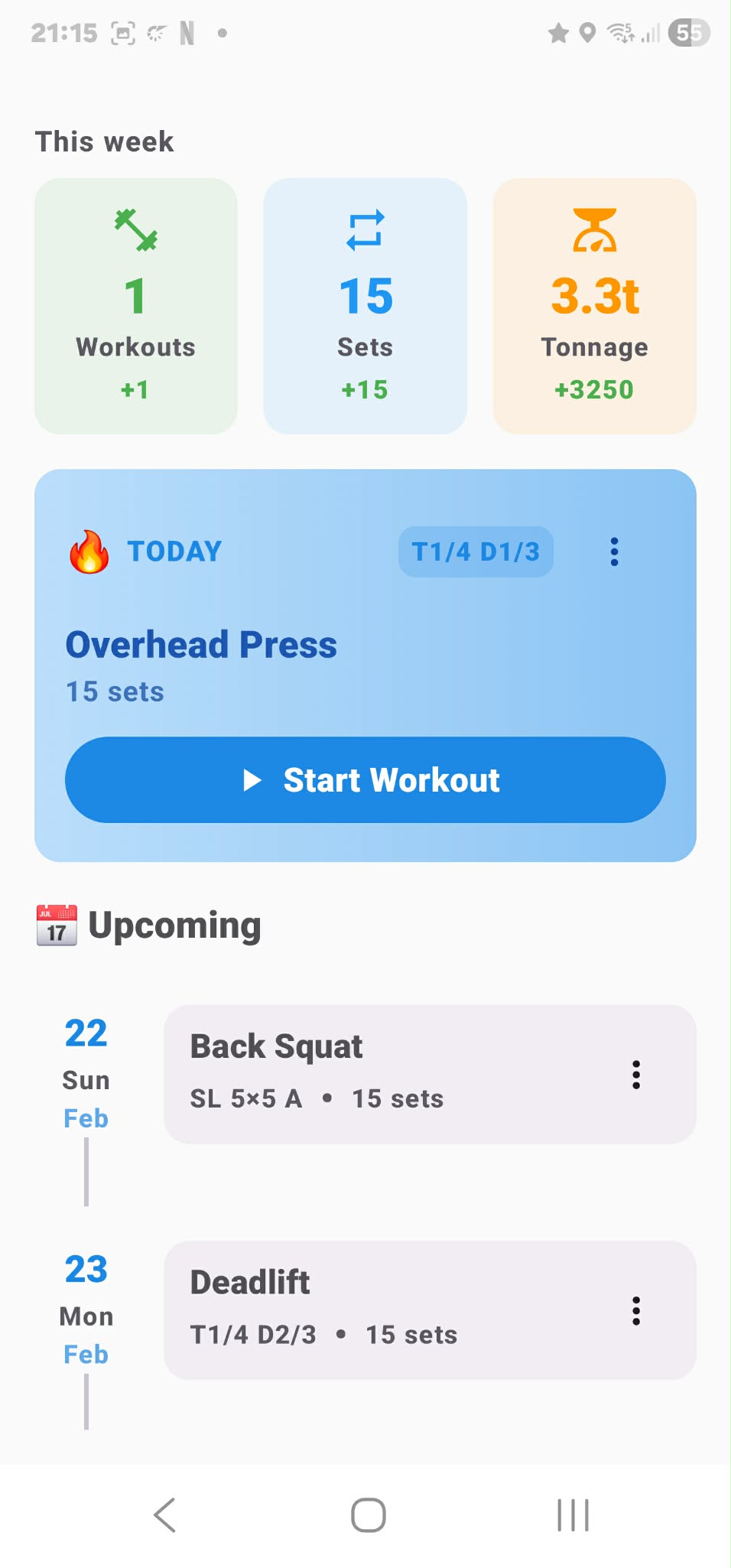
The dashboard is the main screen of the app. It shows an overview of your workouts and quick access to today's training.
Statistics
At the top of the dashboard, you'll see statistics for the selected period (week, month, or year — configurable in Settings → Dashboard):
- Workouts — how many you've completed in the period
- Sets — total number of completed sets
- Tonnage — total weight lifted
Optionally, you can enable comparison with the previous period (a small number showing the change) and a mini progress chart.
Streak
If you enable streaks in settings, the app tracks whether you're training consistently. Set a goal (e.g. 3 workouts per week) and if you meet it, your streak grows. It's a motivational tool — don't break the chain!
Upcoming Workouts
If you have a workout planned for today, it will be highlighted with a "Start Workout" button. Below it, you'll find a list of upcoming workouts.
For each planned workout, the three-dot menu offers these actions:
| Action | Description |
|---|---|
| Start | Begin the workout and start logging sets |
| Complete All | Mark the entire workout as completed at once — useful if you log after the gym. The app will ask for workout duration. |
| Edit | Modify exercises, order, sets, or weights |
| Reschedule | Move the workout to a different day |
| Copy to Date | Create a copy of the workout on a chosen day |
| Generate a printable version for those who prefer training without a phone | |
| Share with Friend | Send the workout to a friend — you'll see their results after they complete it |
| Delete | Delete the workout |
Daily Notes (Journal)
You can write a short note for any day — anything you want to record: what you ate, how you slept, if you went for a walk, how you feel, menstrual cycle notes, etc.
Notes provide context for body measurements and statistics. Changes in circumferences or weight don't always relate to training alone — a daily journal helps you see the full picture.
How to add a note
- On the Dashboard — tap the 📝 icon next to a day
- After completing a workout — an optional note field appears after the stats summary
- In History — days with notes show a 📝 icon and a text preview
You can add notes even on rest days. Maximum length is 500 characters.
Program Templates
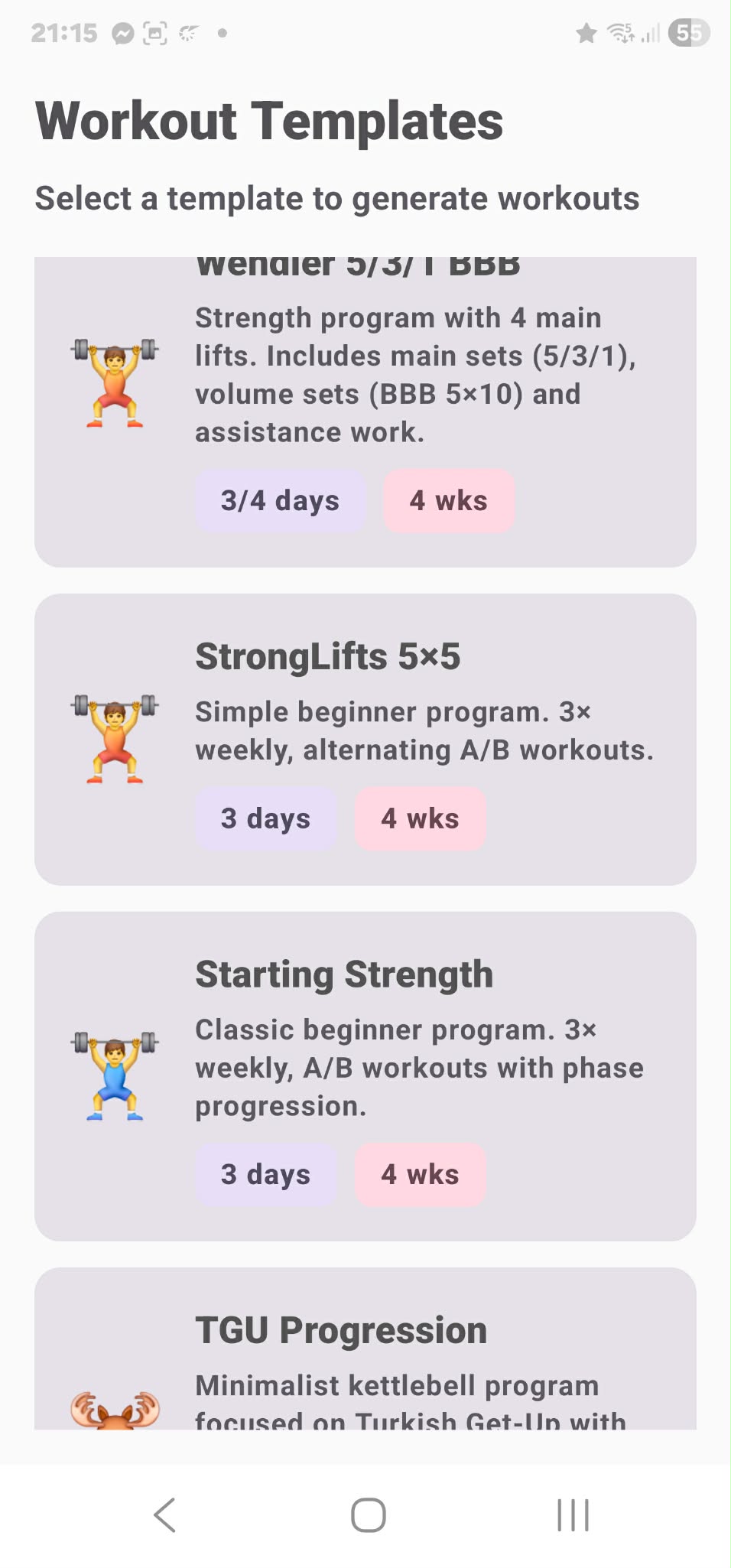
IronPen includes 20 proven training programs with automatic progression. Just pick one, set your parameters, and the app generates a complete training plan for the entire cycle.
Available Programs
| Program | Description |
|---|---|
| Wendler 5/3/1 BBB | Periodized program with 4 main lifts, BBB volume sets and assistance work |
| Wendler 5/3/1 FSL | Wendler variation with First Set Last instead of BBB |
| StrongLifts 5×5 | Simple beginner program, 3× weekly alternating A/B workouts |
| Starting Strength | Classic beginner program with linear progression |
| nSuns 5/3/1 | High-volume Wendler variation with aggressive progression |
| GZCLP | Flexible program with T1/T2/T3 tier structure and tier-down system |
| Madcow 5×5 | Intermediate program with ramping sets and weekly progression |
| Texas Method | Advanced program: volume / recovery / intensity |
| Push/Pull/Legs | Training split by movement patterns |
| Upper/Lower | Four-day upper/lower body split |
| Full Body | Full body training 3× weekly with linear progression |
| PHUL | Power Hypertrophy Upper Lower — strength and hypertrophy combined |
| PHAT | Power Hypertrophy Adaptive Training — 5-day split |
| Tactical Barbell Operator | Minimalist strength program for 6-week cycles |
| Tactical Barbell Fighter | Combat-focused program with 2–3 main lifts |
| DFW (Dry Fighting Weight) | Kettlebell program: clean & press + squats |
| Rite of Passage | Kettlebell program from Enter the Kettlebell |
| Simple & Sinister | Kettlebell program: 100 swings + 10 TGU daily |
| KB & Barbell DUP | Hybrid program: kettlebell + barbell with daily undulating periodization |
| TGU Progression | Specialized Turkish Get-Up program with wave-loading progression |
How to Generate a Training Plan
- Select a template
- Adjust parameters — 1RM values are pre-filled from your maxes but fully editable. For programs with variants (A/B/C, light/medium/heavy) you choose the day assignments.
- Choose how many days per week you want to train
- Choose the number of cycles (usually weeks)
- Select specific days and a start date
- The app generates the entire plan including weight progression
Conflicts with Existing Workouts
If a generated workout overlaps with a day that already has a planned workout, you get three options:
- Add as another — two workouts on the same day
- Merge — exercises from the new template are added to the existing workout (combine multiple templates)
- Replace — the old workout is deleted and replaced with the new one
Automatic Progression
All 20 templates have built-in automatic progression. After completing a workout, the app evaluates your performance and automatically adjusts weights for your next session.
Per-workout progression
For linear programs (StrongLifts, Starting Strength, Full Body, Texas Method, Madcow), weight changes after every workout:
- Completed — weight increases (+2.5 kg upper body, +5 kg lower body)
- Failed — weight stays the same for the next attempt
- 3 consecutive failures — automatic deload (weight reduced by 10%)
Per-cycle progression
For periodized programs (Wendler, nSuns, PHUL, PPL, Tactical Barbell, kettlebell programs), Training Max increases after completing the full cycle:
- Upper body: +2.5 kg to TM
- Lower body: +5 kg to TM
- Kettlebell programs: +4 kg (standard KB jump)
GZCLP tier-down
GZCLP has a unique system. When T1 sets are failed, the rep scheme changes automatically:
- 5×3 failed → switch to 6×2 (−10% weight)
- 6×2 failed → switch to 10×1 (−10% weight)
- 10×1 failed → reset to 5×3 with lower weight
Celebration overlay
After completing the last workout in a cycle, a celebration overlay appears showing new Training Maxes and the option to generate the next cycle.
Progression banner
Before a workout, an info banner appears if something changed since last time — for example, consecutive failure count or GZCLP rep scheme changes.
Progression history
In exercise detail (Gym → Exercises → tap an exercise), each workout shows a colored note about the progression decision:
- 🟢 Green: weight increase (+2.5 kg)
- 🟡 Yellow: same weight repeated (attempt #2)
- 🟠 Orange: deload or tier-down
Custom Workouts
If no template fits your needs, you can create a fully custom workout:
- Choose a workout name (optional)
- Select a date
- Add exercises from the database of 163 exercises
- Set sets, reps, and weight for each exercise

Weight Options
You can enter weight in three ways:
- Absolute weight — in kilograms or pounds
- Percentage of 1RM — the app calculates weight from your personal max
- Bodyweight — for exercises like pull-ups, dips, etc.
You can also add warm-up sets to each exercise, which are generated automatically.
Copy Exercise
When editing a workout, you can quickly duplicate an exercise — tap the 📋 copy icon next to it. The copy is inserted right below the original and automatically opens in edit mode so you can change the weight, reps, or set count.
Typical use: you have KB Goblet Squat 4×19 at 16 kg and want to add the same exercise with a heavier weight — copy it and change to 4×10 at 24 kg.
Active Workout
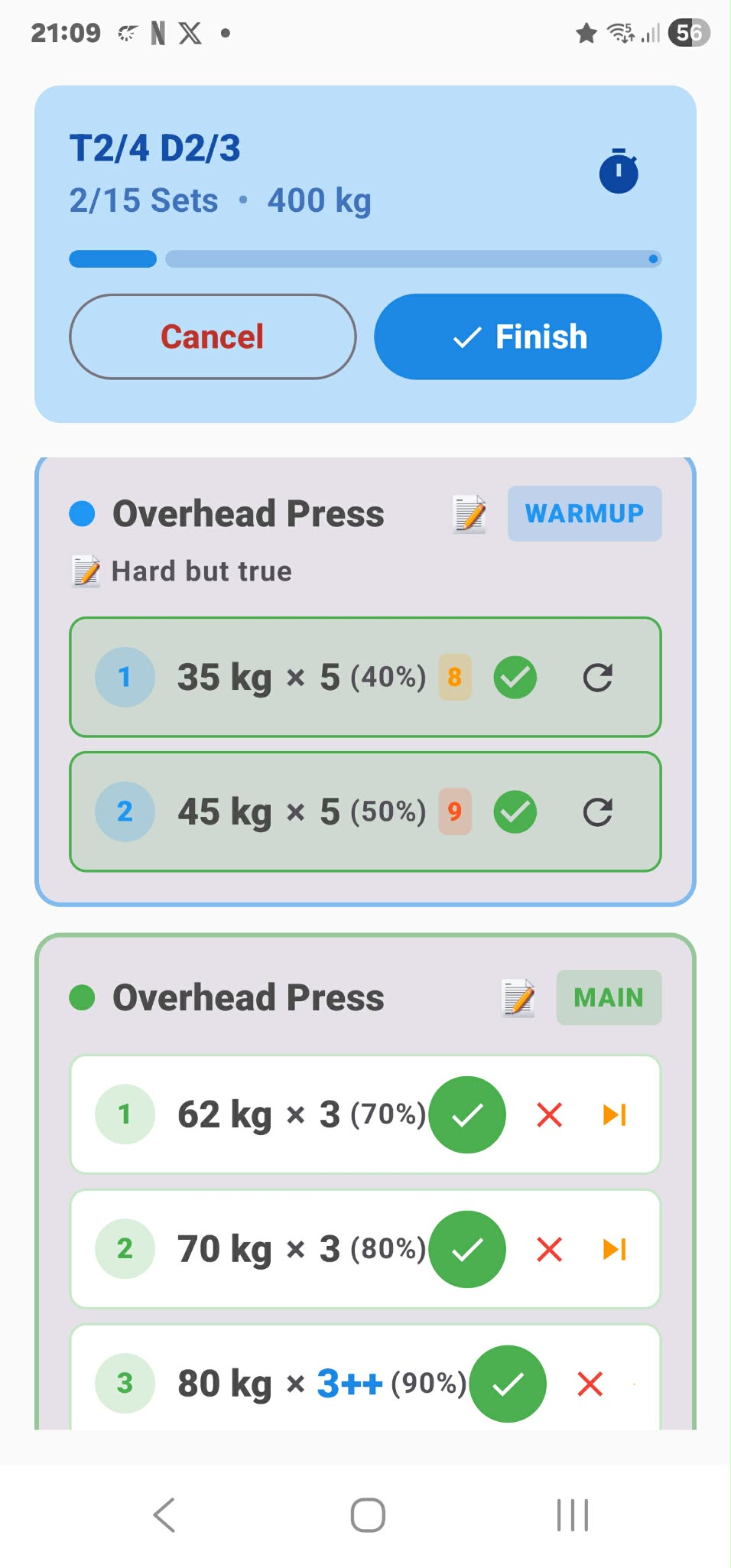
When you start a workout, you enter the training mode. You see a list of exercises and sets to complete.
Logging Sets
For each set, you have several options:
- ✅ Complete — set done as planned
- ❌ Failed — you didn't make it
- 🔄 Repeat — retry the set
Weight stepper
You can adjust weight conveniently via the stepper — + and − buttons add or subtract weight by a configurable step (e.g. 2.5 kg). No need to type numbers on the keyboard.
AMRAP sets
For sets marked as AMRAP (As Many Reps As Possible), a dialog appears after completion to enter the actual number of reps performed. The dialog starts with an empty field for quick input.
RPE (Rate of Perceived Exertion)
After each set, you can rate how hard it was on a scale of 1–10. RPE 10 means maximum effort (couldn't do another rep), RPE 7 means you had 3 reps left in reserve. Enable this in Settings → Training.
Notes
You can add a text note to each set or exercise — for example "shoulder felt off" or "easy, add weight next time."
Live Stats
During the workout, the top bar shows your current completed sets out of the total and running tonnage.
Supersets
If you have two or more exercises in a workout, you can link them into a superset. In a superset, exercises alternate — you do a set of the first exercise, then a set of the second, and so on. The rest timer starts only after the entire linked set is complete.
To create a superset, tap the "link" icon between exercises.
EMOM Mode
EMOM (Every Minute On the Minute) is an interval training format. Toggle ⏱ EMOM on a set or superset and the app guides you through the entire block with timing:
How it works
- Countdown — preparation countdown (configurable: 10–30 seconds). Get ready, you'll see what's coming.
- BEEP → first set — audio signal, displays exercise, weight, and reps. Go!
- Every interval → BEEP — after the interval (30/45/60/90/120 seconds), it beeps and switches to the next set.
- Finish — after the last set, a summary appears. Mark the entire EMOM block as complete at once.
For supersets, sets alternate: exercise A set 1, exercise B set 1, exercise A set 2, exercise B set 2, etc.
During EMOM you see
- Current exercise, weight, and reps
- Timer counting down to the next set
- Set counter (e.g. 3/10)
- Preview of the next exercise
Sound and vibration work even with the screen locked. You can skip a set or stop EMOM early if needed.
EMOM Settings
In Settings → Training → EMOM you can configure:
- Countdown before start — 10, 15, 20, or 30 seconds
- EMOM interval — 30, 45, 60, 90, or 120 seconds
- Signal sound — choose from several sounds
- Vibration — on/off
Workout Completion
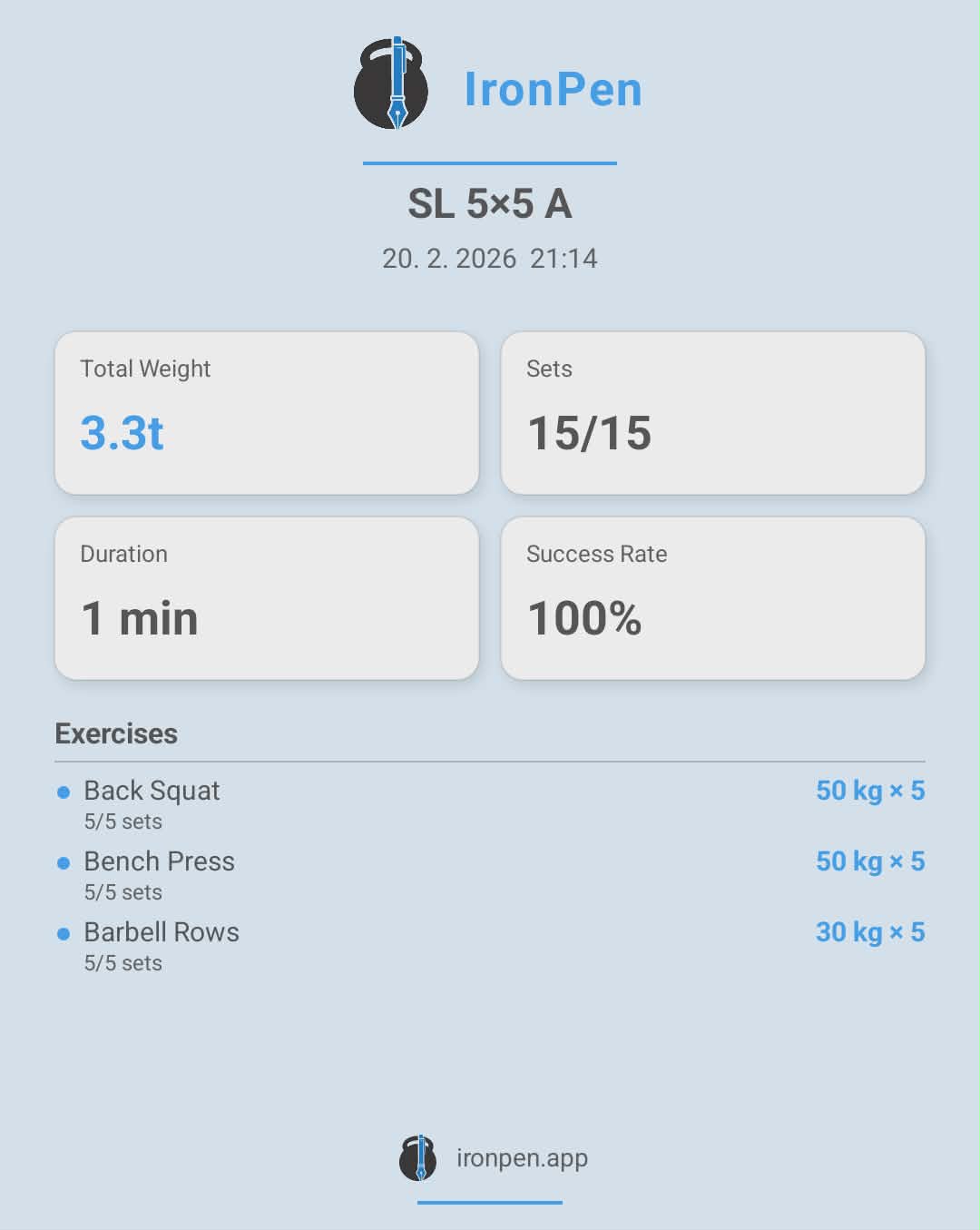
After completing a workout, you'll see a summary:
- Total workout duration
- Total tonnage
- Completed sets
- Success rate (percentage of completed sets)
- Exercise breakdown with weights

Instagram Share Card
After finishing a workout, you can generate a graphic card with your results and share it on Instagram stories or anywhere else. The card includes the IronPen logo, your stats, and a link to the app.
Sharing Results
If you completed a workout that was shared with you by a friend or coach, your results (weights, reps, RPE, notes) are automatically sent back to the sender. They'll see exactly how you did.
Progression summary
After completing a template workout, a progression card appears below the statistics — for each exercise, you can see whether the weight increased, stayed the same, or a deload occurred. If you completed the last workout in a cycle (Wendler, nSuns, TB etc.), a celebration overlay shows your new Training Maxes and a button to generate the next cycle.
Workout History
In Workout → History, you'll find all completed workouts. For each one, you can:
- View detailed breakdown
- Delete
- Share with a friend
- Copy to another day
Edit completed workouts
You can retroactively edit completed workouts — change weights, reps, add or remove sets. Tap a workout in history and select Edit. Useful if you forgot to log the correct number or want to fix a typo.
Advanced Statistics
In Workout → Statistics, you'll find detailed training analysis. A unique feature is that statistics show both completed and planned workouts — so you can see if your future plan is balanced.
Toggles
- Period — Week / Month / Year. "Year" means the last 12 months (rolling window, not calendar year). Arrows ← → shift the period.
- View — History (completed) / Plan (upcoming) / All (both together)
Sets per muscle group
Horizontal bar chart showing how many sets you do per muscle group (chest, back, legs, shoulders, biceps, triceps, core…). Blue bars = completed, gray = planned. Tap a group to see which exercises contributed.
Muscle distribution
Donut chart showing the percentage distribution of training across muscle groups. Instantly see if you're neglecting anything.
Tonnage per muscle group
Total weight lifted per muscle group — same format as sets, but in kilograms.
Top exercises
The 5 most frequent exercises in the period with set count and total tonnage.
1RM progression
Line chart showing estimated 1RM development over time for a selected exercise. You can select multiple exercises at once. See how your strength grows week by week.
Volume trend
Bars showing total volume (sets or tonnage) per week. Blue = completed, gray = planned. See if volume is increasing, decreasing, or stable.
Period comparison
Two periods side by side — for example last month vs current month, or what you completed vs what's planned. Each muscle group shows the change (▲ +3 sets, ▼ -2 sets).
Training vs body measurement correlation
Combined chart: bars (training volume) + line (body measurement). See the direct impact of training on your body — for example leg training volume vs thigh circumference, or total tonnage vs body weight. Only shown if you have at least 2 measurements in the period.
Friends
In Community → Friends, you'll find your friend list, sent and received friend requests.
You can search for friends by email or nickname. After sending a request, the other person must accept.
Mark favorite friends with a star ⭐ — they'll appear at the top of the list.

Friend Profile
Tapping a friend opens their profile with three tabs:
- Shared by me — workouts you've sent to this friend
- Shared to me — workouts they've sent you
- Results — results from workouts you shared that they completed
Groups
Groups let you share workouts with multiple people at once. Ideal for your gym crew or training group.
- Create a group and name it
- Add members (they must be in your friend list)
- Share workouts or templates with the entire group at once
Sharing Workouts
You can share both individual workouts and entire templates (training programs):
- Sharing a workout — your friend receives a specific workout with exercises, sets, and weights
- Sharing a template — your friend receives the entire program and can generate it based on their own maxes
You can share with friends or groups. The recipient will see a notification on their dashboard.
Shared Workout Results
In Community → Results, you can see how your friends performed on workouts you shared with them. Each result shows:
- Completion date
- Total tonnage
- Success rate
- Number of exercises
Tap a result for the full breakdown — every set, weight, RPE, and notes.
Exercise Database
In Gym → Exercises, you'll find a database of 163 exercises organized by muscle group categories. This is where you pick exercises when creating custom workouts.
Each exercise includes a detailed description with proper form explanation, tips for beginners and advanced lifters, and information about targeted muscle groups. Descriptions are bilingual — available in both Czech and English.
YouTube search
Each exercise has a button to search for video tutorials on YouTube. Tapping it opens YouTube with the exercise name pre-filled — so you can watch proper form demonstrations.
Personal Records (1RM)
In Gym → 1RM Maxes, you set your personal records for the main lifts. These values are used for:
- Calculating training weights in templates (percentages of 1RM)
- Displaying percentages during workouts
- Tracking progress
The app automatically tracks your personal records — if you lift more than ever before during a workout, it'll congratulate you on a new PR! 🏆
Calculators
Plate Calculator
Enter a target weight and the calculator shows you exactly which plates to load on each side of the bar. No more mental math.
1RM Calculator
If you don't know your one-rep max, enter a weight and the number of reps you can do, and the calculator estimates your maximum using multiple formulas (Epley, Brzycki, and more).
Body Measurements
In Gym → Body Measurements, you can record and track changes over time:
- Body weight
- Body fat percentage
- Circumferences (arms, chest, waist, thighs, and more)
Account
In Settings → Account, you can:
- Change your avatar (upload a photo)
- Change your nickname
- Verify your email address
- View Premium subscription status
- Delete your account
- Sign out
App Settings
Language
Choose from eight languages. You can also opt to keep exercise names in English regardless of the app language — useful if you're used to English exercise names.
Appearance
Three modes: system (follows phone settings), light, and dark.
Navigation
The bottom navigation bar can be hidden for more screen space. You can also set an auto-hide interval.
Training
- Keep screen on — prevents the phone from sleeping during workouts
- Unit system — metric (kg) / imperial (lb)
- Weight increment — default weight increase for templates with progression
- Auto-complete L+R — for unilateral exercises, both sides complete together
- RPE per set — enable the effort rating dialog
- Auto warm-up — automatically generates warm-up sets
- Warm-up style — choose warm-up type
- Assistance auto-progression — assistance exercises progressively increase weight
Rest Timer
Configure the rest timer between sets:
- Auto-start — timer starts automatically after completing a set
- Auto-hide — timer hides automatically when it expires
- Rest duration — default pause length (adjustable during workouts)
- Notification — sound, vibration, both, or none
Feedback
In Settings → Feedback you can send a bug report or feature request directly from the app. The message is sent to the developer — no need to find an email or leave the app.
Backup & Restore
In Settings → Data, you can back up and restore all local data. We recommend regular backups so you don't lose your data when switching phones.
Frequently Asked Questions
Contact
Have a question, suggestion, or found a bug? Don't hesitate to reach out: